

Withdrawal at Plus777: GCash, Maya, Limits & Steps
Withdrawal at Plus777 lets players send funds from their account to a selected receiving wallet. The process requires the withdrawal amount, wallet details, account number, and password before the request can be submitted. At Plus777, GCash and PayMaya are available as receiving options, with transaction limits displayed directly on the withdrawal page.
How a Plus777 Withdrawal Works
The withdrawal area is divided into two practical parts: Request withdrawal and Receiving account. That separation is useful because the destination can be prepared before any money is requested.
A normal cash-out follows this order:
- Open the Receiving account section and make sure the intended wallet has been added.
- Return to Request withdrawal.
- Select the GCash or PayMaya account that should receive the money.
- Enter the withdrawal amount.
- Enter the withdrawal password.
- Check the amount and destination again.
- Press Confirm withdrawal.
It is a short process, but rushing through those fields creates unnecessary problems. A saved wallet from an earlier transaction may still appear in the selector, so the account currently displayed should never be treated as correct automatically.
For example, a saved GCash account may appear as GCASH (****1509). Those final digits are useful. Before withdrawing, compare them with the wallet that is actually being used now instead of relying on memory.
A withdrawal request is easier to fix before confirmation than after it has been sent to the wrong receiving account.
Receiving Accounts: GCash and PayMaya
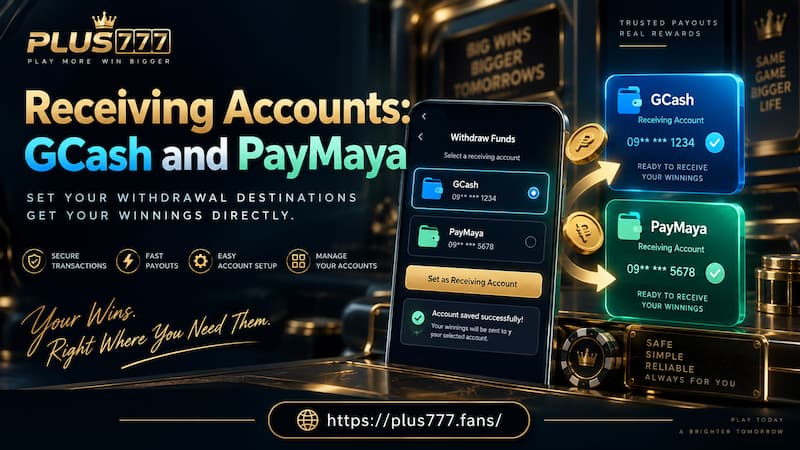
GCash and PayMaya are both available inside the receiving-account section. This means the withdrawal destination is managed separately from the amount being requested.
That small design choice is important. It lets the player decide where the money should go first, then complete the financial part of the request.
Receiving Accounts: GCash and PayMaya
Adding GCash
GCash appears as one of the available receiving-account methods. Once added, the wallet is displayed in masked form, allowing the final digits to be checked without exposing the full account number on screen.
Before using it, check:
- The selected method says GCASH.
- The visible ending digits match the intended GCash account.
- The wallet is still active and accessible.
- The account has not been replaced by a newer number since it was first added.
A saved account is convenient, but convenience can also create complacency. Someone who changes SIM cards, replaces an e-wallet account, or uses several wallets can easily select an outdated destination without noticing.
Adding PayMaya
PayMaya is also listed as an available receiving-account option. Many users now know the service simply as Maya, but the withdrawal menu may still use the PayMaya name.
The same rule applies here: Add the receiving account first, then verify it before requesting a withdrawal.
There is little benefit in changing between GCash and PayMaya just for the sake of changing. If one receiving account is already correct, active, and familiar, using that account can reduce the chance of a typo or mistaken destination.
Managing More Than One Account
The receiving-account screen can display a counter such as Receiving account (1/4). That makes account selection more important once several destinations have been saved.
With multiple accounts available, the useful habit is simple: Read the selected wallet before typing the amount.
Do not think of the wallet selector as a minor field. It decides where the withdrawal is supposed to arrive.
Withdrawal Limits and Available Balance
The withdrawal form displays the transaction range directly in the amount field:
- Minimum withdrawal: ₱2,000
- Maximum withdrawal: ₱20,000
These limits affect how a request should be planned.
A balance of ₱1,700, for example, is still below the displayed minimum. Pressing All does not remove that restriction. The amount still needs to satisfy the minimum shown in the withdrawal form.
At the other end, suppose the available amount is ₱28,000. A single ₱28,000 request would exceed the displayed ₱20,000 maximum. The transaction therefore needs to stay inside the range allowed on screen.
Withdrawal Limits and Available Balance
Balance and Withdrawal Amount Are Different
It helps to separate three numbers mentally:
- Available balance: The amount currently available in the account.
- Withdrawal amount: The amount being requested now.
- Transaction limit: The minimum and maximum permitted for one request.
Confusing them is an easy way to waste time.
If the balance says ₱8,600, requesting ₱5,000 fits both the balance and the displayed transaction range. Requesting ₱10,000 does not, because the account does not have enough available balance even though ₱10,000 falls below the ₱20,000 maximum.
The withdrawal screen should always be treated as the current source for transaction limits. Limits can change over time, so an older screenshot or an old figure remembered from a previous visit is less useful than the number currently written beside the amount field.
Withdrawal Password and Final Confirmation
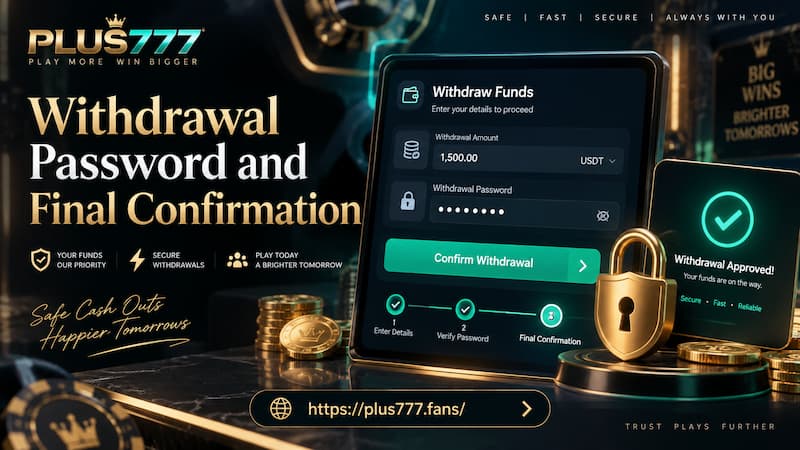
After the amount comes the Verify withdrawal password field.
This is not a field to fill mechanically. It sits near the end of the transaction for a reason: By this stage, the receiving account and withdrawal amount should already be correct.
A sensible confirmation routine is:
- Check the wallet name.
- Check the masked account digits.
- Check the withdrawal amount.
- Compare the amount with the available balance.
- Enter the withdrawal password.
- Confirm only after the entire request looks correct.
The withdrawal password should not automatically be assumed to be the same as login password. Unless the account itself states otherwise, treat it as its own verification credential.
If the Confirm withdrawal button cannot be used, inspect the fields before doing anything drastic. A missing amount, incomplete password, unavailable balance, or unfinished receiving-account selection can stop the request from being ready.
Changing several things at once makes troubleshooting harder. Check one field at a time.
GCash or PayMaya for Withdrawal
There is no need to turn the choice between GCash and PayMaya into a complicated comparison. The better option is usually the receiving account that is active, correct, and under the player’s control.
| Check | GCash | PayMaya |
| Available as receiving account | Yes | Yes |
| Account needs to be selected | Yes | Yes |
| Details should be verified before withdrawal | Yes | Yes |
| Best choice depends on current account access | Yes | Yes |
Do not assume GCash is always faster simply because it is familiar. The same applies to PayMaya. Processing speed can depend on factors beyond the wallet name, and a fixed arrival time should not be promised unless it is stated during the actual transaction.
The safer comparison is practical.
Choose GCash when the correct GCash wallet is already saved and accessible. Choose PayMaya when that is the account intended to receive the funds. If both are available, accuracy matters more than switching methods in search of an unconfirmed speed advantage.
Withdrawal Errors to Check First
Most withdrawal problems are easier to investigate when the request is broken into separate pieces instead of repeatedly pressing confirm. Common account and payment questions can also be checked in frequently asked questions.
Amount Is Below or Above the Limit
Start with the visible limits.
A request below ₱2,000 or above ₱20,000 falls outside the displayed range. Change the amount so it fits the current limits shown in the form.
Available Balance Is Too Low
Check the balance shown above the withdrawal fields.
If the account displays ₱3,200, a ₱5,000 withdrawal cannot be completed simply because ₱5,000 is within the general withdrawal range. The requested amount must also be covered by the available balance.
Wrong Receiving Account Is Selected
Return to Receiving account and inspect the selected destination.
For a GCash account ending in 1509, for instance, the masked account display should end in the same four digits. A mismatch is a reason to stop before confirmation.
Withdrawal Password Is Rejected
Re-enter the withdrawal password carefully.
Do not immediately change the receiving wallet or amount if those fields were already correct. Isolating the password issue keeps the problem easier to identify.
Confirm Withdrawal Is Unavailable
A disabled confirmation button usually means the form is not ready to submit.
Check:
- Receiving account selected
- Amount entered
- Amount within the displayed limits
- Sufficient balance available
- Withdrawal password completed
The withdrawal area also reminds users to confirm receiving-account information to avoid processing errors or failed withdrawals. That warning is worth following literally.
Withdrawal Checklist Before Confirming
A final ten-second review can prevent a much longer correction later.
Before pressing Confirm withdrawal, verify:
- GCash or PayMaya is the intended receiving method.
- The saved account details match the wallet currently being used.
- The available balance is sufficient.
- The request is at least ₱2,000.
- The request does not exceed ₱20,000 under the currently displayed limits.
- The withdrawal password has been entered correctly.
- The amount has been checked once more before confirmation.
- The live withdrawal screen has not displayed a different limit or requirement.
A clean Withdrawal request is mostly about precision. The process itself is short; the important part is making sure the destination, amount, and verification details agree before the transaction leaves the form.